
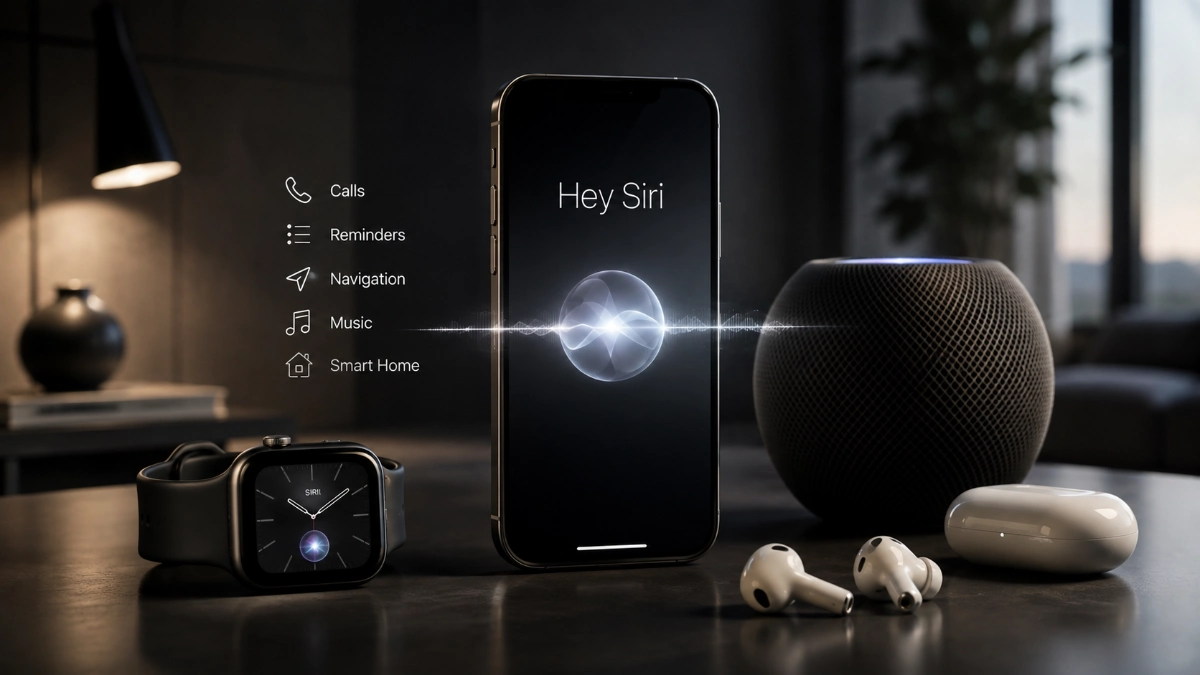

Hey Siri lets you activate Apple’s voice assistant without pressing a button. After enabling it, you can ask Siri to call someone, send a message, set reminders, start navigation, control compatible smart-home devices, find an Apple device, or handle quick calculations.
This guide focuses on using Siri hands-free on iPhone: how to switch it on, choose the right settings, make clearer requests, solve common activation problems, and understand the limited relevance of newer Apple Intelligence features.
What Is Hey Siri?
Hey Siri is a voice wake phrase for Siri, Apple’s built-in assistant. It allows you to start a request when your hands are busy, or your phone is out of reach.
For example, you can say:
- “Set a timer for 15 minutes.”
- “Call Rahul.”
- “Remind me to pay the bill tomorrow.”
- “What’s the weather today?”
- “Where is my iPad?”
- “Turn off the bedroom lights.”
On supported devices, languages, and regions, Apple may also let you use the shorter wake phrase, “Siri.” Both phrases activate the same assistant; they are not separate features.
How to Turn On Hey Siri
On current iPhone software, Siri controls are typically in Settings > Apple Intelligence & Siri or Settings > Siri. The exact wording can vary by iOS version.
To enable voice activation:
- Open Settings.
- Tap Apple Intelligence & Siri or Siri.
- Tap Talk & Type to Siri.
- Turn on the available “Siri” or “Hey Siri” option.
- Complete the voice-recognition prompts if they appear.
- Test it with a simple request, such as “What time is it?”
If the wake phrase worked before but no longer does, Apple recommends turning the listening option off and back on, then repeating setup.
When the Siri Option Is Missing
First, restart the iPhone. If the Siri settings still do not appear, check for a VPN profile, Screen Time restrictions, or workplace/school device-management rules.
Apple specifically notes that some VPN configurations can prevent Siri from working correctly or make related settings behave unexpectedly.
You should also check for an available iOS update, because Siri controls and feature support can change between software versions.
Other Ways to Activate Siri
Voice activation is convenient, but it should not be your only method. Siri can also be started through buttons, accessories, and typing.
| Method | How it works | Best situation |
| Voice wake phrase | Speak “Siri” or “Hey Siri,” when supported | Cooking, exercise, walking |
| Side button | Press and hold the Side button | Public or noisy spaces |
| Home button | Press and hold on compatible older iPhones | Older iPhone models |
| AirPods | Use a supported gesture or voice wake-up | Calls and commuting |
| CarPlay | Use the vehicle voice-control button | Driving |
| Apple Watch | Use the configured Siri method | Short requests away from iPhone |
| Type to Siri | Enter a request as text | Meetings, libraries, exact wording |
Apple documents both voice and manual activation methods across its devices.
Useful Tasks to Ask Siri
Siri performs best with direct, structured tasks. Include the action, the person or item involved, and the detail that matters.
Instead of saying, “Remind me about the bill,” say:
“Remind me tomorrow at 10 AM to pay the electricity bill.”
That gives the assistant a clear task and deadline.
Calls, Messages, and Communication
Use Siri to handle short communication tasks when you cannot easily use the screen.
- “Call Mom.”
- “FaceTime Priya.”
- “Send Aditi a message saying I’ll be there in 20 minutes.”
- “Read my last message.”
- “Reply, sounds good.”
- “Call my last missed number.”
For important messages, listen to the recipient and message confirmation before sending. Voice recognition can mishear names, dates, numbers, or mixed-language phrases.
If Siri selects the wrong contact, say the full name, remove duplicate contact cards, or add phonetic spelling in Contacts.
Reminders, Alarms, and Timers
This is one of Siri’s most useful categories because it captures a task before you forget it.
- “Set a timer for 25 minutes.”
- “Set a timer for nine minutes called pasta.”
- “Set an alarm for 6:30 AM.”
- “Remind me to call Aman at 6 PM.”
- “Add milk to my shopping list.”
- “Remind me every Monday at 8 AM to review my content calendar.”
Named timers are helpful for cooking, workouts, laundry, or focused work. They make it easier to manage more than one countdown at a time.
Directions and Local Requests
Siri can use Maps to start routes and locate nearby places.
- “Take me home.”
- “Get directions to the airport.”
- “Find a gas station nearby.”
- “What’s my ETA?”
- “Find a coffee shop near me.”
Always check the displayed destination and route before you leave. Navigation results can be affected by map data, traffic, road closures, and your current location.
Music, Podcasts, and Playback
Hands-free playback control is useful through iPhone, AirPods, CarPlay, and compatible speakers.
- “Play my workout playlist.”
- “Play the latest episode of this podcast.”
- “Skip this song.”
- “Lower the volume.”
- “Pause the music.”
- “Stop playing in 45 minutes.”
If Siri chooses the wrong result, add the artist, album, playlist, podcast title, or episode name.
Quick Calculations and Conversions
Voice requests can save time for basic everyday calculations.
- “What is 18 percent of 450?”
- “Convert 10 miles to kilometers.”
- “How many minutes are in three hours?”
- “Convert 72 degrees Fahrenheit to Celsius.”
- “What time is it in New York?”
For financial, health, legal, or complicated calculations, verify results independently before acting on them.
Settings That Make Siri More Useful
The most productive setup is not necessarily the most hands-free one. Configure Siri for your usual environment: speaking while cooking, button activation in public, and typed requests when privacy or precision matters.
| Setting | Purpose | Useful when |
| Talk & Type to Siri | Controls voice wake-up and typed requests | You want hands-free or text-based access |
| Press Side Button for Siri | Enables manual activation | Voice is unreliable or inappropriate |
| Siri Language | Affects recognition and available functions | You use more than one language |
| Siri Voice | Changes spoken responses | You want a clearer preferred voice |
| Siri Responses | Controls audible feedback | You need Siri to speak or stay discreet |
| Type to Siri | Lets you enter requests silently | Meetings and public places |
| Siri Pause Time | Gives you longer to finish speaking | Siri answers before you are done |
Response Preferences and Type to Siri
If Siri appears to respond but does not speak aloud, check Siri Responses. Apple offers a Prefer Spoken Responses option, which can let Siri speak even if Silent mode is on.
Type to Siri is useful when you are in a meeting, classroom, library, noisy train, or other situation where speaking is inconvenient. It is also a better choice for addresses, spellings, lengthy reminders, and private details.
Siri Pause Time
If Siri often stops listening before you finish a sentence, adjust Siri Pause Time in Accessibility settings. This can help people who speak slowly, pause between phrases, or need a little longer to frame a request.
Can You Say “Siri” Instead?
On supported devices and language settings, yes. Apple says you may be able to activate the assistant by saying either “Siri” or “Hey Siri.” Your available choices depend on your device, country, region, and Siri language.
To check, open:
Settings > Apple Intelligence & Siri > Talk & Type to Siri
If the shorter phrase does not appear, use the available voice option, press the Side button, or use Type to Siri.
Why Voice Activation May Not Work
If pressing the Side button activates Siri but speaking does not, the issue is usually related to voice activation, the microphone, language settings, or local restrictions-not Siri as a whole.
Work through these checks in order:
- Open Settings > Apple Intelligence & Siri > Talk & Type to Siri and confirm voice activation is enabled.
- Turn the listening option off and back on, then repeat the recognition prompts.
- Restart the iPhone.
- Record a test in Voice Memos to check microphone quality.
- Remove cases, dirt, or accessories that might block microphone openings.
- Confirm your selected Siri language matches how you are speaking.
- Install the latest available iOS update.
- Review Screen Time, managed-device, and VPN restrictions.
Apple’s own troubleshooting guidance recommends re-enabling voice activation when Siri does not respond to its wake phrase.
When the Wrong Apple Device Answers
If you have an iPhone, iPad, Apple Watch, HomePod, or Mac nearby, a different device may answer. Apple says compatible devices use Bluetooth to determine which one should respond, often based on which device heard you best or was used most recently.
To limit wrong-device responses:
- Keep Bluetooth enabled.
- Update all nearby Apple devices.
- Check Siri activation settings on each device.
- Place an iPhone or iPad face down when you do not want it to respond.
- Use the physical activation method on the specific device you want to control.
Privacy and Lock-Screen Access
Siri can provide convenience, but review what it is allowed to do when your phone is locked. Requests involving calls, messages, personal information, and connected apps may reveal more than you intend in shared spaces.
Good privacy habits include:
- Use Face ID, Touch ID, or a strong passcode.
- Review Siri access from the Lock Screen.
- Check app permissions and Siri integrations.
- Avoid speaking passwords, bank details, health information, or confidential work content aloud.
- Disable voice wake-up if accidental activation is a recurring concern.
For ordinary voice tasks, privacy is often more about your physical surroundings and Lock Screen configuration than about the request itself.
Read more: Hey Siri: Setup, Useful Commands, Settings, and Common Fixes
Apple Intelligence and Siri AI: What Matters Here
Apple introduced Siri AI on June 8, 2026, as a new Apple Intelligence-powered version of Siri. Apple says it is designed to understand personal context, relevant onscreen content, broader knowledge, and actions across supported apps.
For a practical Hey Siri guide, the key point is simple: classic voice commands and Siri AI are not the same thing. Your iPhone may support basic voice activation, calls, timers, reminders, and smart-home controls without supporting the newer Apple Intelligence experience.
Apple Intelligence support is limited to compatible hardware, and feature access can vary by software version, language, and region. Apple also states that Apple Intelligence features do not currently work on supported devices purchased in mainland China, or for certain users located there with a China mainland Apple Account region.
Treat feature-specific Siri AI claims as time-sensitive. Check Apple’s current support and availability pages before publishing updates, making a purchase decision, or expecting a newly announced feature on your device.
Frequently Asked Questions
What does Hey Siri do?
It wakes Apple’s voice assistant without requiring a button press. You can use Siri for calls, messages, reminders, timers, alarms, navigation, media control, calculations, device finding, and supported smart-home actions.
How do I turn on Hey Siri?
Go to Settings > Apple Intelligence & Siri or Siri > Talk & Type to Siri, turn on the available “Siri” or “Hey Siri” option, and complete the voice-recognition setup if prompted.
Can I use Siri instead of saying Hey Siri?
Yes, where Apple offers the shorter wake phrase for your device, language, and region. Look in Talk & Type to Siri to see the available options.
Why is Siri not responding to my voice?
Confirm voice activation is on, switch it off and back on, repeat setup, restart the phone, test the microphone, check language settings, update iOS, and review VPN or device restrictions.
Does Siri work without internet?
Some functions may work on-device, while others need an internet connection, location data, online services, or access to a connected app. It depends on the request and device.
How do I turn off voice activation?
Open Settings > Apple Intelligence & Siri > Talk & Type to Siri and turn off the “Siri” or “Hey Siri” listening option. You can still activate Siri by button if that setting remains enabled.
Does Siri work with AirPods?
Compatible AirPods support Siri through available voice activation or device controls. The exact features depend on the AirPods model, the connected device, and installed software.
Why does my HomePod or Apple Watch answer instead?
Nearby compatible Apple devices use Bluetooth to decide which device responds. The one that hears you best, was used most recently, or is prioritized for the request may answer.
Can Siri control lights and smart-home devices?
Yes, Siri can control compatible accessories added to Apple Home. Available actions depend on the device, Home setup, and security permissions.
Is Siri AI available on every iPhone?
No. Siri AI and other Apple Intelligence features require compatible hardware and can vary by software, language, and region. Basic Siri is available on far more Apple devices.