













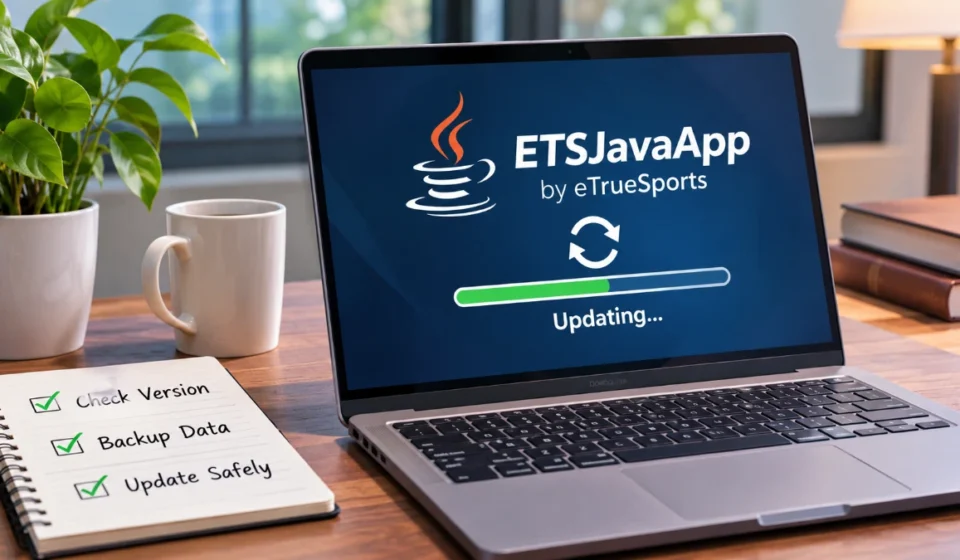

To understand how to update ETSJavaApp by eTrueSports, first check the version installed on your device and identify its original download source. Look for an update option inside the application, but only install a replacement when you can verify its publisher and authenticity. As of November 7, 2026, a publicly verifiable latest ETSJavaApp release, authenticated installer, and independently confirmed update mechanism have not been established. If you cannot verify a legitimate update, do not install an unfamiliar package.
The website has published an installation and configuration article, but that publication alone does not authenticate an installer or establish that every described feature is available. The safest approach is to check your existing software, verify any update announcement, and protect your application data before making changes.
What Is ETSJavaApp by eTrueSports?
ETSJavaApp is described in an eTrueSports article as a Java-based desktop client associated with eTrueSports services. The published guide discusses installation, configuration, system requirements, and troubleshooting.
However, its claimed functionality and distribution arrangements have not been independently established. The etruesports etsjavaapp guide is useful as a reference to what the website claims, but readers should distinguish those descriptions from verified software specifications.
It is also important not to confuse ETSJavaApp with a separate mobile application. In its August 19, 2026 article about the eTrueSports iOS app, the website explicitly states that it does not currently offer an official iOS application.
How to Check Your Current ETSJavaApp Version
Before attempting an update, identify the software installed on your computer. Knowing its current version helps you determine whether a newer release is actually necessary.
Follow these general steps:
- Open ETSJavaApp if it is already installed.
- Look for an About, Help, Settings, or Application Information section.
- Check whether the application displays a version or build number.
- Record the information and compare it with any verified release announcement.
- Check the developer name and original installation source.
These are standard software-verification steps, not confirmed ETSJavaApp menu instructions. If you cannot find version information, inspect the application’s installation folder or original installer details.
Do not assume that a file with a higher version number is genuine simply because its name resembles the application.
How to Update ETSJavaApp by eTrueSports Safely
A verified current update package and authenticated distribution channel have not been established. Nevertheless, you can use the following process to determine whether an update is available and whether installing it is appropriate.
Step 1: Check for an Available In-App Update
Open the installed application and inspect its available menus.
Look for options such as:
- Check for Updates
- Software Updates
- About
- Update Information
If an update option exists, check whether it identifies the release number, publisher, or destination website.
Do not assume that an automatic updater is available just because an online article recommends enabling one. Confirm that the feature actually exists in your installed application.
Step 2: Verify the Update Source
Before downloading anything, establish whether the distribution page is genuinely associated with the software developer.
Check these details:
- The complete website address and domain.
- The developer name displayed on the download page.
- The release notes and publication date.
- The installer’s digital signature, where available.
- Whether the download is linked from a publisher-controlled website.
A website mentioning eTrueSports does not automatically qualify as an authenticated software distributor.
Searches for etruesports .com and etruesports co can also lead to similarly named or incorrectly written addresses. Check the complete domain rather than relying on a familiar brand name.
Step 3: Back Up Important Application Data
Before replacing an existing installation, preserve any information you might need later.
Depending on the application, this could include:
- Configuration files
- Saved preferences
- Custom settings
- Local application data
- Relevant error logs
Store the backup separately from the installation folder. This gives you a recovery option if an update causes problems.
There is no independently verified guarantee that an ETSJavaApp update will preserve existing user data.
Step 4: Download and Install a Verified Update
Only proceed when you have identified an authenticated release.
If a legitimate installer becomes available:
- Read the release notes and compatibility information.
- Confirm that the installer matches your operating system.
- Verify its publisher signature where available.
- Close the existing application.
- Run the verified installer and follow its instructions.
- Avoid deleting existing application data unless the publisher specifically requires it.
If you cannot establish that the installer is genuine, stop instead of downloading a replacement from an unfamiliar website. An unidentified JAR, EXE, or APK file is not a safe substitute for a verified release.
Step 5: Restart and Verify the Updated Version
After a successfully completed installation, reopen the application.
Check its version information and compare it with the release details provided by the authenticated publisher.
Also confirm that:
- The application opens normally.
- Your previous settings remain available.
- Important functions work as expected.
- No unexpected security warnings appear.
If the application fails to start, investigate the error before attempting another installation.
How to Update ETSJavaApp Manually
Manual updating may be possible if the developer provides a verified replacement installer. However, no authenticated ETSJavaApp manual-update package has been established.
If you are considering a manual update, follow this checklist:
- Identify the original application and developer.
- Locate a verified distribution channel.
- Confirm that a newer release actually exists.
- Compare its release information with your installed version.
- Back up important local files.
- Follow the developer’s documented installation instructions.
Avoid replacing application files with packages downloaded from random forums or file-sharing websites.
The same caution applies when searching for an etsjavaapp release date by etruesports. A date mentioned in an unrelated article is not proof that a particular software version was officially released.
Java Compatibility and Common Update Problems
Because ETSJavaApp is described as Java-based, Java compatibility may be relevant. However, its exact runtime requirements have not been independently confirmed.
The eTrueSports installation article mentions Java 11 or later. This should be treated as a requirement claimed by that publication, not an independently verified ETSJavaApp specification.
How to Check Your Installed Java Version
On Windows, macOS, or Linux, open a terminal or command prompt and enter:
java -version
The command displays the Java version available through your system’s configured environment.
For legitimate Java downloads, use Oracle’s official Java Downloads page. Oracle currently lists Java 27 as its latest feature release and Java 25 as its latest long-term support (LTS) release. These are general Java release details, not confirmed ETSJavaApp compatibility requirements.
You can also consult the official Oracle JDK installation documentation for Windows installation guidance.
Installing a newer Java version does not automatically resolve every application problem. Some software depends on a particular runtime or configuration.
Common Update Problems and Possible Solutions
| Problem | What to check |
| Update download fails | Check your connection and verify the download source. |
| Installer will not open | Confirm that the file is complete and compatible with your operating system. |
| Java-related error | Check the installed runtime using java -version. |
| Application crashes | Review error messages and available application logs. |
| Permission denied | Check whether your operating system is blocking the installer. |
| Previous settings disappear | Restore your backup if the application supports it. |
If a problem continues, consult the verified software developer rather than downloading another installer from an unknown source.
How to Avoid Fake eTrueSports Application Updates
Application names can be copied by unrelated websites, so download safety deserves particular attention.
When researching etruesports tech, distinguish between technology-related articles and actual software distribution information. An article explaining how an application supposedly works does not prove that its installer is genuine.
The same caution applies to mobile searches. Phrases such as etsiosapp version from etruesports, etsiosapp update by etruesports, and etsiosapp how to update from etruesports may appear in search results, but they do not establish that an official mobile application or update exists.
The publisher’s August 2026 iOS article states that eTrueSports does not currently offer an official iOS application. Therefore, do not treat an unidentified ETSiOSApp download as an authenticated product.
For anyone searching for an etruesports ios app, accessing the website through a mobile browser is the alternative described in the publisher’s guidance.
To protect your device:
- Verify the complete website address.
- Check the developer’s identity.
- Avoid unidentified application packages.
- Never disable antivirus protection to install suspicious files.
- Do not provide account credentials to unfamiliar update websites.
- Look for a verifiable release announcement before trusting a claimed update.
Frequently Asked Questions
Is an official ETSJavaApp update currently available?
A verified current release and authenticated download source could not be established as of November 7, 2026. Check publisher-controlled announcements before attempting an update
Does ETSJavaApp update automatically?
An automatic updater has not been independently verified. Do not assume that this feature exists unless you can confirm it in your installed application.
Will updating ETSJavaApp delete my saved data?
There is no verified guarantee that application data will remain intact. Back up important settings and configuration files before installing a replacement version.
Does ETSJavaApp require a specific Java version?
The eTrueSports installation guide mentions Java 11 or later, but this requirement has not been independently confirmed. Check the actual application’s documentation before changing your Java installation.
What should I do if the ETSJavaApp update fails?
Check your internet connection, Java installation, operating system permissions, and installer integrity. If the download source cannot be authenticated, do not attempt another installation from an unfamiliar website.